Waypoint Smart Money · Sierra Chart study
Premium Discount
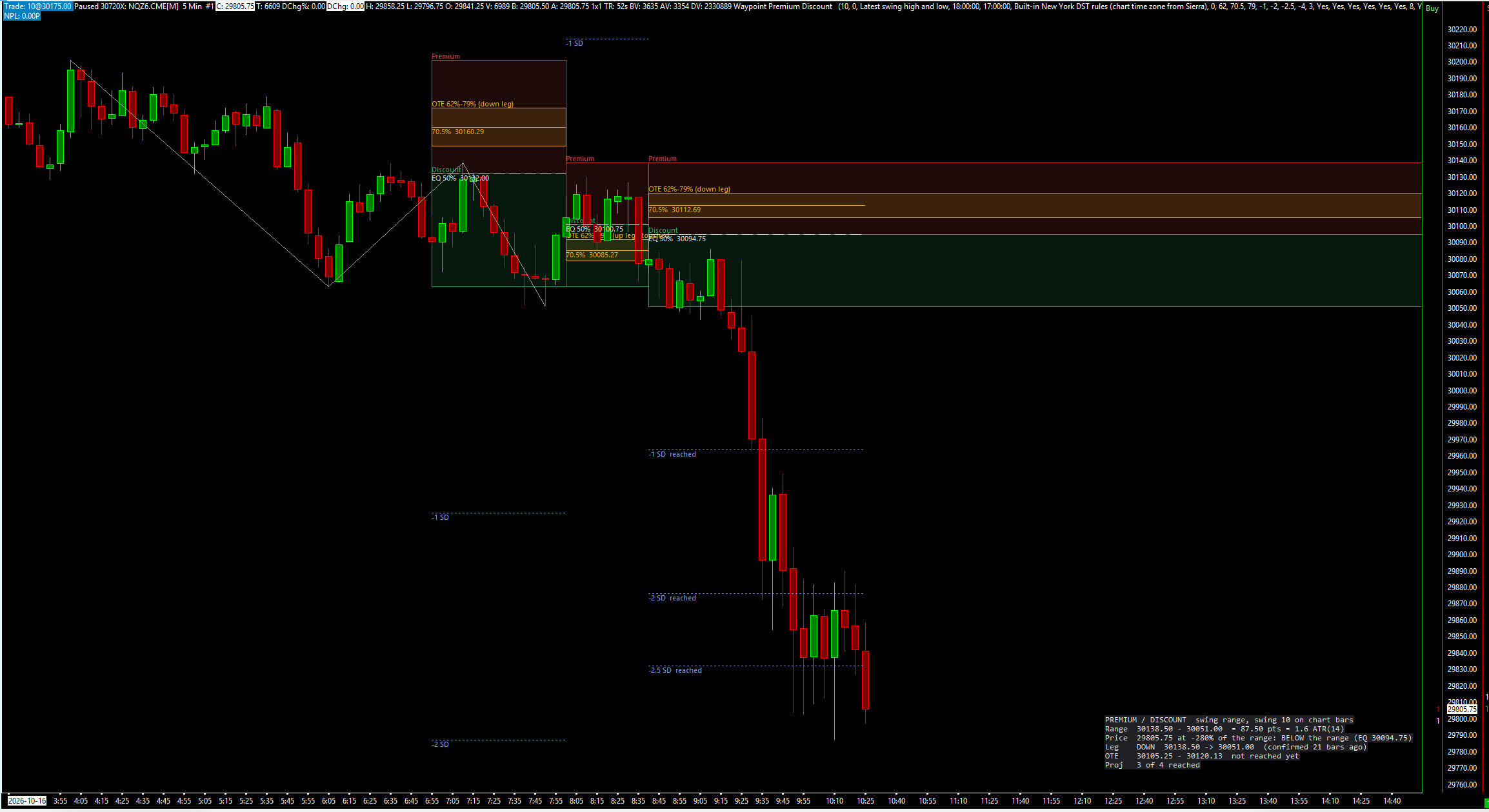
Premium and discount zones of the dealing range, the 62-79% retracement band and leg projections.
Premium Discount draws premium and discount zones between the latest confirmed swing high and low, with the 50% equilibrium line, plus retracement levels and projections of the latest leg. The 62-79% retracement band (often called OTE) is shaded with a 70.5% line, and standard-deviation projections sit beyond the leg's end. The range can also be the current or prior session's high and low, and the swings can come from a higher timeframe on the same chart. It never repaints, and it places, changes and cancels no orders.
What the study does
- A dealing range from the latest confirmed swing high and swing low (Swing Length 10 by default), with premium shaded above 50%, discount below, and an "EQ 50%" line with its price.
- Range Source: the latest swing high and low (default), the current session's running high and low, or the prior session's. Session times are New York time, by default 18:00-17:00, the Globex day.
- The 62-79% retracement band (often called OTE) of the latest leg, shaded, with a 70.5% line. The levels are an editable list.
- Standard-deviation projections of the same leg at -1, -2, -2.5 and -4, also an editable list of up to 8 values.
- A thin leg line from pivot to pivot, and the last 3 ranges and legs kept on the chart, labelled when a band was touched or a projection reached.
- Swing Timeframe in Minutes builds the swings from a higher timeframe on the same chart, for example 15 on a 1-minute chart. 0 uses the chart's own bars.
- A panel: range size in points and in ATR(14), where price sits as a percent of the range (premium, discount, above or below), the leg's direction, prices and how many bars ago it was confirmed, the band and whether it was touched, and how many projections were reached.
- No repainting: a range, leg, band and projections are drawn from the bar that confirms the second swing, and touches are tested from the next bar. A provisional forming-bar input is off by default.
- Alert sounds on the first entry into the band and on reaching a projection, plus hidden subgraphs for the range, equilibrium, band, position in range, zone, leg direction and projections.
What you need
- Any intraday chart. For a Swing Timeframe, a bar size that divides it, such as 1-minute bars for 15-minute swings.
- A 24-hour (Globex) chart for the current and prior session range sources.
- A back-adjusted continuous contract if you look at long history, so a roll does not make a false swing.
Set it up in Sierra Chart
Step 1: Buy and download
Buy this study on its own here, or all eight Waypoint Smart Money studies at once from the Smart Money page (one .zip with every DLL). Checkout is a one-time payment. As soon as it is confirmed, the page Stripe returns you to has a Download button, and the receipt email carries the same link. Extract the .zip to any folder. It holds WaypointPremiumDiscount_64.dll, plus a short INSTALL.txt.
Step 2: Unblock the DLL
Right-click WaypointPremiumDiscount_64.dll > Properties. If the General tab shows an "Unblock" box, tick it, then click OK. Windows' Smart App Control can still refuse an unsigned DLL. If it does, the study is missing from the Add Custom Study list, or Sierra Chart's Message Log shows a loading error with the code 4551. Turning Smart App Control off is your own decision.
Step 3: Copy it into Sierra Chart's Data folder
Copy WaypointPremiumDiscount_64.dll into Sierra Chart's Data folder. On a default install that is C:\SierraChart\Data. Otherwise it is the Data folder inside wherever Sierra Chart is installed.
Step 4: Add the study to a chart
Open the chart, then Analysis >> Studies >> Add Custom Study. Find the group "Waypoint Premium Discount", select "Waypoint Premium Discount", click Add, then OK. If the group is not in the list, restart Sierra Chart and look again.
Step 5: Choose the range
Open the study's Settings. Range Source is Latest swing high and low (default), Current session high and low, or Prior session high and low. Session Start (New York time) and Session End (New York time, exclusive) default to 18:00 and 17:00, the Globex day; for the RTH session use 09:30 and 16:00. These times are New York time on a chart in any time zone. New York Time From sets how bar times are converted; the default is the Built-in New York DST rules (chart time zone from Sierra).
Step 6: Set the swing
Swing Length (bars each side) (default 10) sets how many bars each side a swing needs, and a swing is confirmed that many bars after it. To take swings from a higher timeframe, set Swing Timeframe in Minutes, for example 15 on a 1-minute chart. Its periods follow the Globex day from 18:00 New York.
Step 7: Edit the levels
OTE Levels (% retracement; band = first to last, line = middle) defaults to 62, 70.5, 79: the band runs from the first to the last level and the line is the one nearest the middle. Standard Deviation Projections (leg multiples, up to 8) defaults to -1, -2, -2.5, -4. Ranges / Legs Kept on the Chart (default 3) sets how much history stays drawn.
Step 8: Read the panel
The panel sits at the bottom right by default (Panel Position). It gives the range in points and in ATR, where price sits in the range and whether that is premium or discount, the leg's direction and prices, the band and whether it was touched, and how many projections were reached.
Step 9: Check that it loaded
Open Window >> Message Log. Look for a line that starts with "Waypoint Premium Discount BUILD", followed by the build date and time. That line proves the study loaded. With a session Range Source or a Swing Timeframe set, and unless you use the fixed offset, a second line, "Waypoint Premium Discount time check", says on how many quarter-hours Sierra's conversion and the built-in New York rules agree. If it is logged as an error, switch New York Time From.
Settings to check first
Open them with a right-click on the chart, then Studies, select the study and press Settings.
- Swing Length (bars each side)
- Bars on each side of a swing high or low. A swing is confirmed this many bars later. Default 10.
- Swing Timeframe in Minutes (0 = chart bars, 1440 = daily)
- Builds the swings from a higher timeframe on the same chart. Default 0 (chart bars).
- Range Source
- Latest swing high and low (default), Current session high and low, or Prior session high and low.
- Session Start (New York time)
- Start of the session for the session sources. Default 18:00, with Session End (New York time, exclusive) at 17:00.
- New York Time From
- How bar times become New York time for the sessions and the swing timeframe. Default Built-in New York DST rules (chart time zone from Sierra).
- OTE Levels (% retracement; band = first to last, line = middle)
- The retracement band and its line. Default 62, 70.5, 79.
- Standard Deviation Projections (leg multiples, up to 8)
- Projections beyond the leg's end, as multiples of the leg. Default -1, -2, -2.5, -4.
- Ranges / Legs Kept on the Chart
- How many past ranges and legs stay drawn. Default 3.
Good to know
- A map of where price sits in the range, not a signal. Waypoint's own tests found that entries in the 62-79% retracement band did no better than entries at random retracement depths on the same legs, before or after costs.
- A swing is only known Swing Length bars after it, so a new range and leg appear then, not at the swing itself.
- Every newly confirmed swing starts a new leg. A bar that is both a swing high and a swing low gives two legs on the same bar, and the down leg is the one drawn and tracked.
- It uses one fixed swing definition. Other traders draw dealing ranges differently.
- On a continuous chart that is not back-adjusted, a roll can make a swing.
- It draws and alerts only. It places, changes and cancels no orders.
How it was tested. The engine was compiled exactly as shipped and compared bar by bar and leg by leg with an independent reference on years of NQ, ES and CL 1- and 15-minute data, including a 1-minute chart with 15-minute swings, which matched the legs of native 15-minute bars. The forming-bar copy was checked against the closed-bar result on every run.
More Waypoint Smart Money studies
$9.99
Market Structure
Swing and internal structure: HH/HL/LH/LL points, BOS, CHoCH and MSS lines, and strong/weak highs and lows.
$9.99
Fair Value Gaps
Fair value gaps with fill tracking, CE lines, inversions and BPRs, plus a scorecard against random levels.
$9.99
Order Blocks
Order blocks and breaker blocks from structure breaks, on any timeframe, scored against random levels.
$9.99
One-time, instant download
Trade an idea around these levels?
Screen it first. Describe the rule in plain English and it is tested on tick data through pre-registered gates, after costs, with every trial counted in the public ledger.