Sierra Chart study
Supply & Demand Zones
Base-and-leg-out supply and demand zones on any timeframe, with a scorecard against random levels.
Supply & Demand Zones draws zones from a fixed base-and-leg-out rule, on the chart's own bars or on a higher timeframe built inside the study. Zones form on closed bars only, so nothing repaints. A panel sizes a trade at the nearest zones from your risk per trade, and a scorecard lets you check on your own chart whether the zones beat random levels of the same size. It draws zones; it places, changes and cancels no orders.
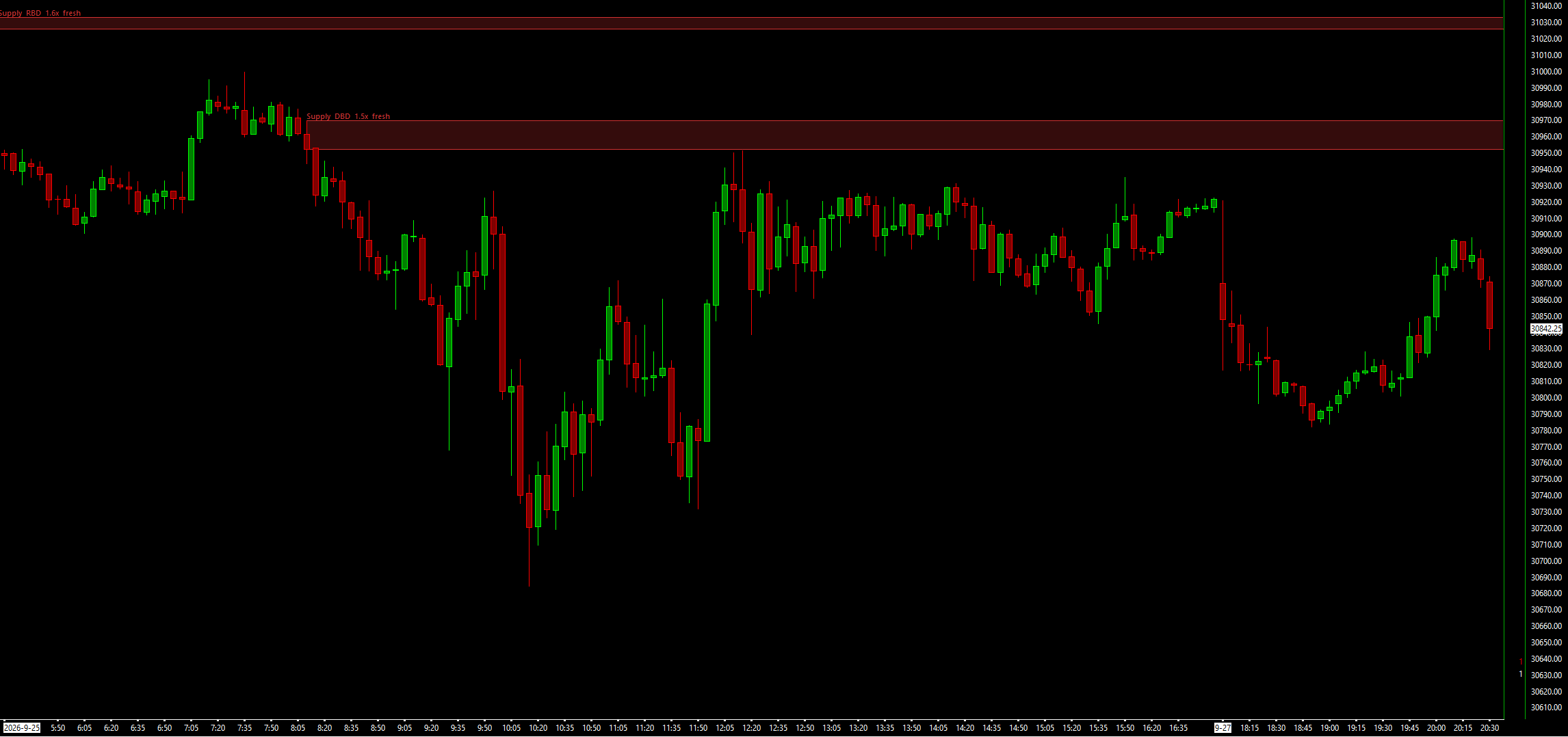
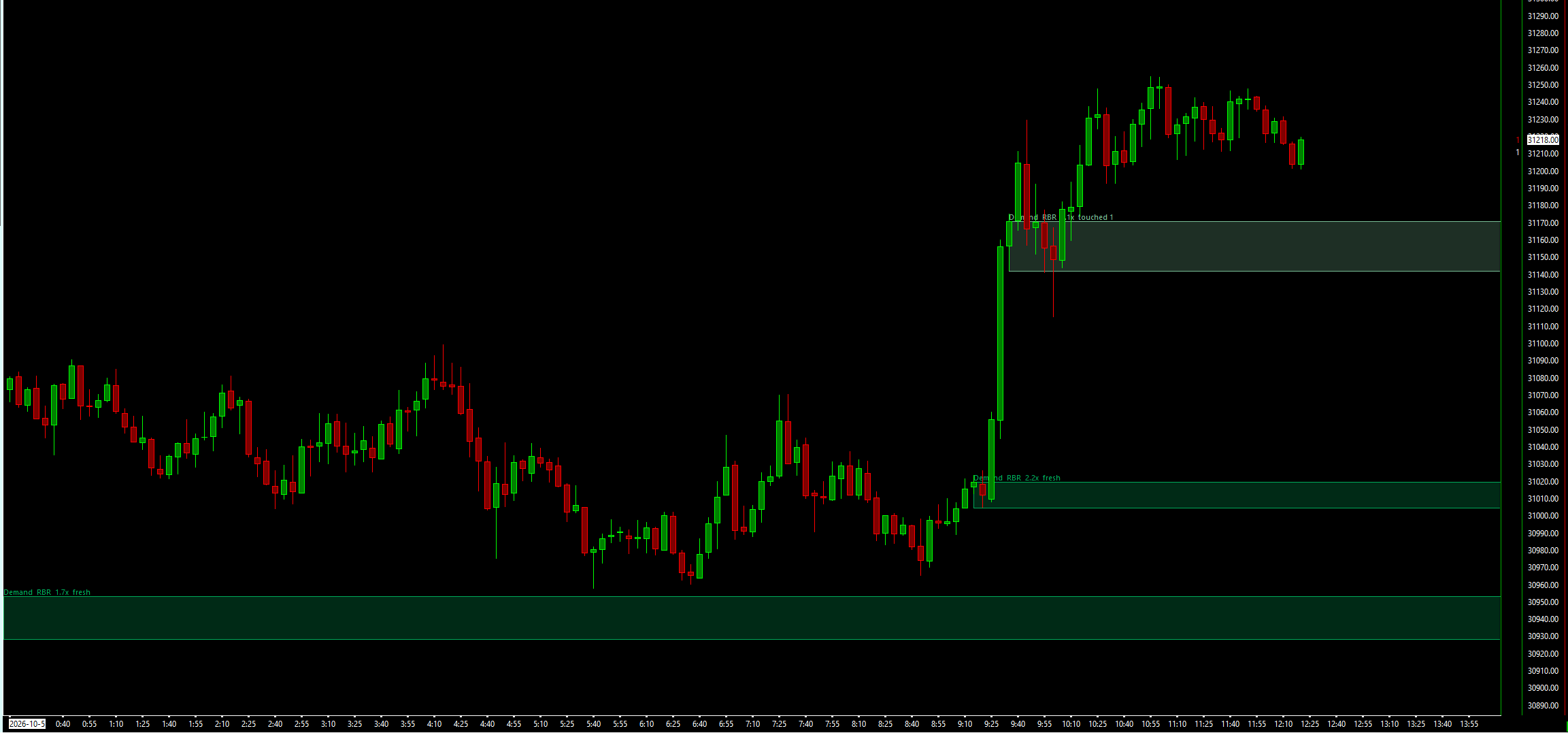
What the study does
- Zones from a base of 1 to 3 small-bodied candles followed by a leg-out candle whose body is at least 1x ATR and that closes beyond the base.
- The proximal line at the base's body and the distal line at the wick. Zones taller than the Max Zone Height (default 1.5x ATR) are skipped.
- Zone Timeframe in Minutes builds zones from a higher timeframe on the same chart, for example 60 on a 5-minute chart, or 1440 for daily zones.
- Fresh and tested zones in separate colours, with labels for side, timeframe, pattern (RBR, DBR, RBD, DBD), leg-out strength and touch count.
- A zone ends on a close (or, by input, a wick) beyond its distal line, after a set number of touches, or at a maximum age.
- A position-size panel: entry, stop, risk in points and dollars, and contracts for Risk per Trade ($) at the nearest demand and supply zones, plus the room to the opposite zone in R.
- A scorecard: each zone's first touch is traded on paper against 3 random levels of the same side and height, with a verdict on this chart's own data once there are 30 zone trades.
- Subgraphs for the nearest demand and supply levels and a touch flag, and an optional alert sound on a touch.
What you need
- Any intraday chart. For exact scorecard grading, a 1-minute chart with Zone Timeframe set (for example 15).
- The symbol's Currency Value per Tick set in Sierra Chart, for the position-size dollars.
Set it up in Sierra Chart
Step 1: Buy and download
Checkout is a one-time payment. As soon as it is confirmed, the page Stripe returns you to has a Download button, and the receipt email carries the same link. Extract the .zip to any folder. It holds WaypointSupplyDemandZones_64.dll, plus a short INSTALL.txt.
Step 2: Unblock the DLL
Right-click WaypointSupplyDemandZones_64.dll > Properties. If the General tab shows an "Unblock" box, tick it, then click OK. Windows' Smart App Control can still refuse an unsigned DLL. If it does, the study is missing from the Add Custom Study list, or Sierra Chart's Message Log shows a loading error with the code 4551. Turning Smart App Control off is your own decision.
Step 3: Copy it into Sierra Chart's Data folder
Copy WaypointSupplyDemandZones_64.dll into Sierra Chart's Data folder. On a default install that is C:\SierraChart\Data. Otherwise it is the Data folder inside wherever Sierra Chart is installed.
Step 4: Add the study to a chart
Open the chart, then Analysis >> Studies >> Add Custom Study. Find the group "Waypoint Supply Demand Zones", select "Waypoint Supply & Demand Zones", click Add, then OK. If the group is not in the list, restart Sierra Chart and look again.
Step 5: Pick the zone timeframe
Open the study's Settings. Leave Zone Timeframe in Minutes at 0 to build zones from the chart's own bars, or set a higher timeframe such as 60, or 1440 for daily zones. For the most exact scorecard, use a 1-minute chart and set the zone timeframe (for example 15).
Step 6: Set your risk
Set Risk per Trade ($) (default 500) for the position-size panel. Its dollars come from the symbol's Currency Value per Tick, so check that it is set for your contract.
Step 7: Check that it loaded
Open Window >> Message Log. Look for a line that starts with "Waypoint Supply & Demand Zones BUILD", followed by the build date and time. That line proves the study loaded.
Settings to check first
Open them with a right-click on the chart, then Studies, select the study and press Settings.
- Zone Timeframe in Minutes (0 = chart bars, 1440 = daily)
- Builds zones from a higher timeframe on the same chart. Default 0 (chart bars).
- Min Leg-Out Body (x ATR)
- How strong the leg-out candle must be. Default 1.0 with ATR Length 14.
- Max Base Candles
- Up to this many base candles before the leg-out. Default 3, with Base Candle Max Body (% of range) at 50.
- Max Zone Height (x ATR)
- Taller zones are skipped. Default 1.5.
- Zone Broken When
- Zone-timeframe close beyond distal (default), or any wick beyond distal.
- Remove Zone After Touch Number (0 = keep until broken)
- Removes a zone after this many touches. Default 3.
- Risk per Trade ($)
- Dollar risk for the position-size panel. Default 500.
- Show Zone Scorecard (zones vs random levels on this chart)
- Shows the scorecard. Default Yes, with a 2R target, a 40 zone-bar time exit and a 1-tick cost.
Good to know
- Waypoint's own screens found mechanical supply and demand zones behaved like random levels after costs. The scorecard does not show that zones beat random levels; it lets you check that question on your own chart.
- On bars longer than 1 minute, the scorecard decides a bar that spans both stop and target by which level is nearer its open, so it reads slightly low on 15-minute bars. Use a 1-minute chart with a Zone Timeframe for exact grading.
- Position-size dollars come from the symbol's Currency Value per Tick in Sierra Chart.
- It draws one fixed zone definition. Other traders define zones differently.
- It draws zones only. It places, changes and cancels no orders.
How it was tested. The zone engine was compiled exactly as shipped and checked zone by zone against the research screen it was built from on NQ, ES and CL. Higher-timeframe zones were checked against native bars, and the scorecard against a 1-minute trade walk.
More studies
$19
One-time, instant download
Trade an idea around these levels?
Screen it first. Describe the rule in plain English and it is tested on tick data through pre-registered gates, after costs, with every trial counted in the public ledger.